Algorithm don’t like the creator, YouTube unsubscribing me from my favorite channel
You are signed in to YouTube. As per usual, you sit down in front of the screen waiting to run through the list of new videos in your subscriptions.
A few month passes and you do a double take. Wait a minute. Why did I miss out on _____’s (fill in your favorite creator’s channel) videos?
Is it because the creator did not upload any new videos?
Then you realize that the creator is not even in your subscription list anymore. i.e. The YouTube unsubscribing me problem.
Unfortunately, this happens. Often. Especially to creators that are talking about things that are frowned upon by the ‘almighty’ YouTube algorithm.
Even if to you, the content is informative and enjoyable. Creating insights and opening your intellectual horizons that puts you in a better place than before.
But YouTube will have none of that. So it secretly removes your subscription pretending things are aye okay. Join the 1-5% of subscribers every year. How many is that? Here are my estimates:
For a channel size of 1000, that’s up to 50 subscribers a year. 10k subscribers, 500. 100k subscribers, 5k. 1 million, 50k.

What can I do as a subscriber with youtube unsubscribing me secretly?
Instead of signing in and subscribing to the YouTube creator, I string 3 different tools together set up the automations and then wait for the reliable incoming alert.
And most importantly never missing out videos from my favorite creators ever again due to YouTube unsubscribing me secretly.
What are the 3 tools?
The best thing is you don’t even need a YouTube account whilst using these tools.
N.B. I am not sponsored by any of the 3 tools. Although each tool have a paid subscription level, each of them also have a free tier that you can still make use. You decide what is best for you.
In the meantime, I will show you the steps, I take to set up the automation. This is suitable for beginners don’t worry!
In summary, I get Newsblur to scan my YouTube creator’s channel for new videos. When Newsblur picks up a new video, IFTTT detects a change in status and passes this information to ToDoist.
Why I do it this way is because ToDoist is my task manager and I have it open in all my devices. So it is conveniently the place where I aggregate my to-dos for the day so that I don’t have to go to different apps (this increases productivity).
IFTTT is an app that connects my different app services together. In this case, Newsblur and ToDoist.
Both Newsblur and IFTTT are set once and forget about it kind of service.
1st step of automation (Newsblur)
Firstly, sign up, and then sign into Newsblur.
Next, go to the bottom of the website (browser view), click on the + sign

Then, click on the + sign on the right of Top Level.
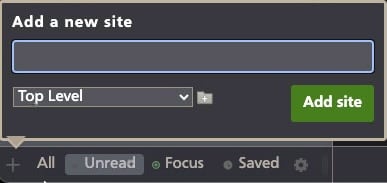
Input a folder name that you like. In my case, I make it clear with YT FORBIDDEN LIST. Then, click on Add folder (green button).
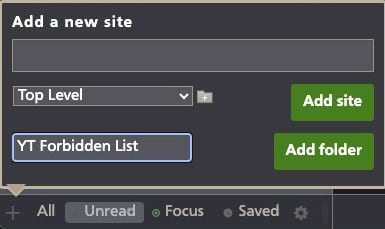
Thereafter, you add the URL of the YouTube creator and after that, click Add site (green button).
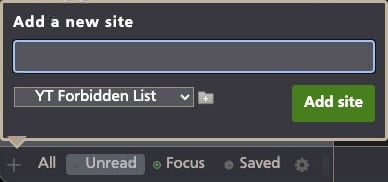
You can now proceed to the next section.
2nd step of automation (IFTTT connecting to the 2 services)
Firstly, sign up, and then sign into IFTTT as well as ToDoist.
Next, go into IFTTT, click on the create link on the top right corner of the website (browser view)

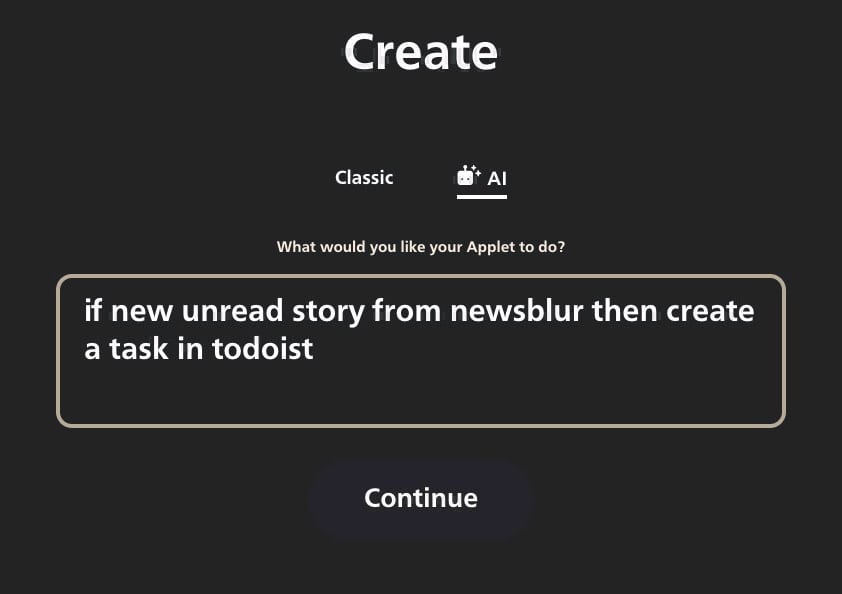
You will encounter this next page, where you click on the AI link. Of course you can also use the classic interface though it is a bit laborious.
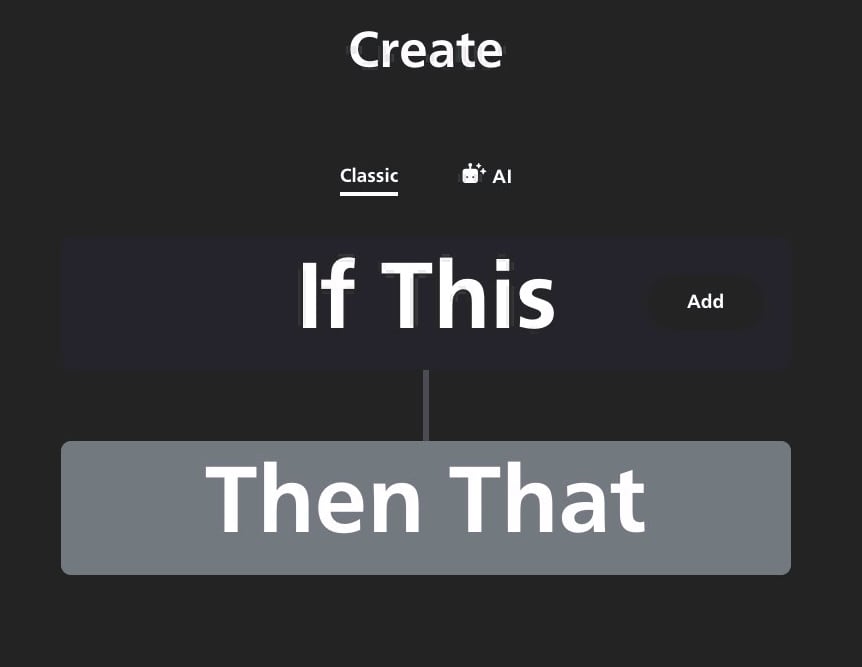
There after write the following instructions. Then click Continue button.
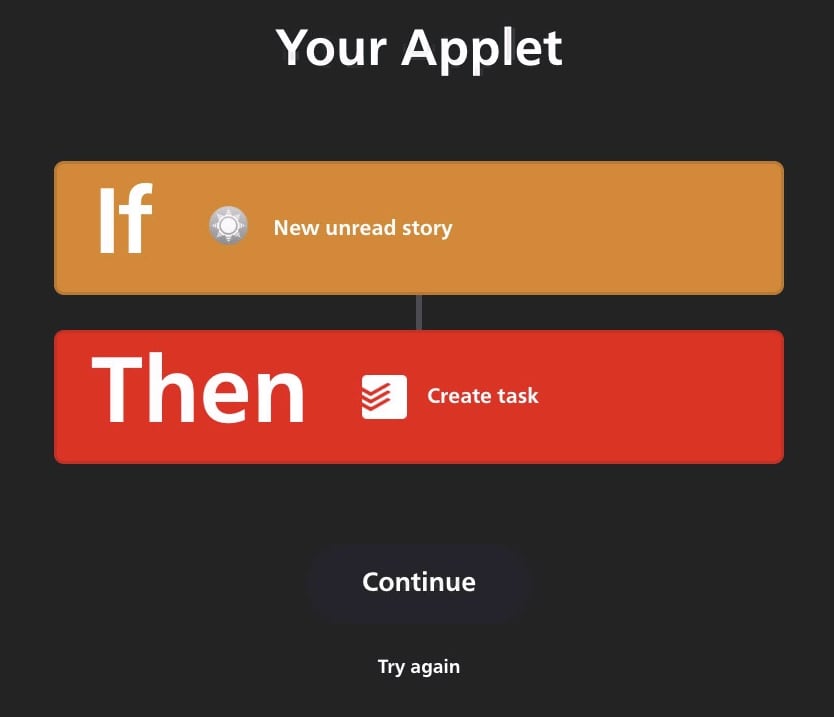
You will be encounter after that, a page that shows the 2 app services. Check if the logos are correct. If they are, then proceed to click on the Continue button.
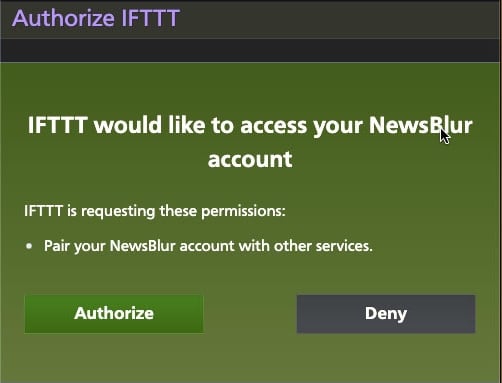
After that you will be asked to sign in to both Newsblur and ToDoist. Click on Authorize for each of the app services.
3rd step of automation (IFTTT, pick variables to suit you)
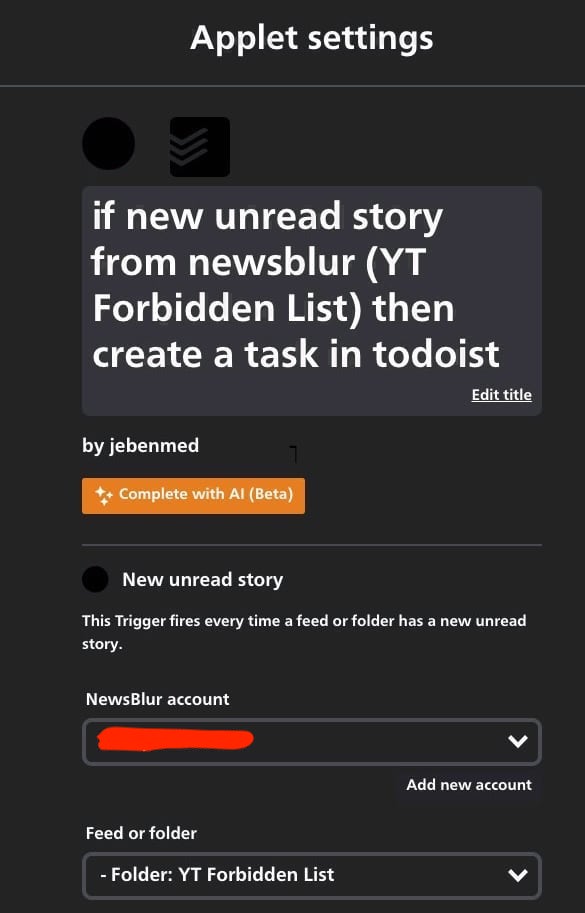
You will then be able to set the variables for Newsblur and ToDoist. Let’s start with Newsblur. I will add in the (YT Forbbiden List) into the name of the automation to make it clearer to me. In addition, I will also change the folder to YT Forbidden List.
In future, as long as you add new YT channels to the same folder, you don’t need to add another automation. Everything will work auto-magically.
Then, scroll further down to alter the ToDoist variables to your preference (or leave it as is).
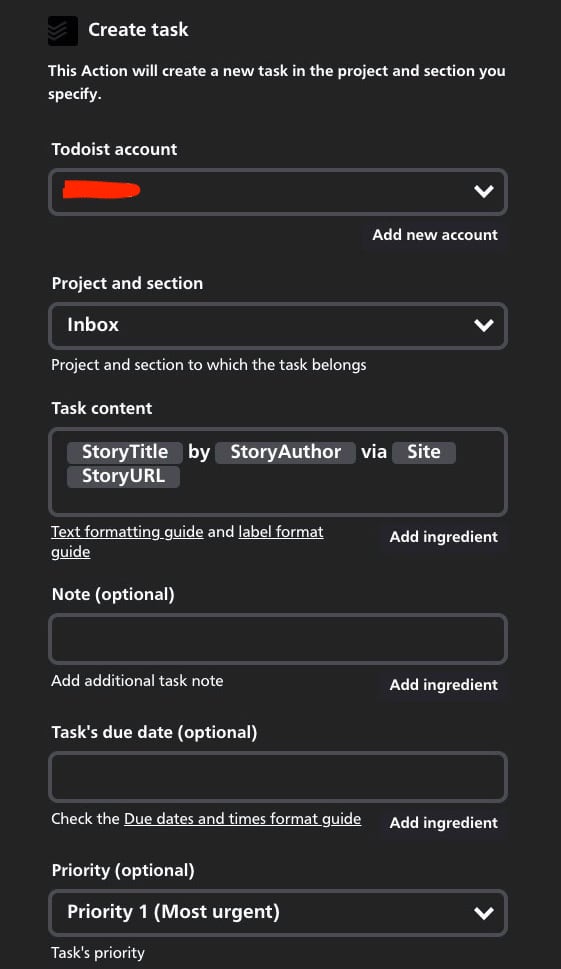
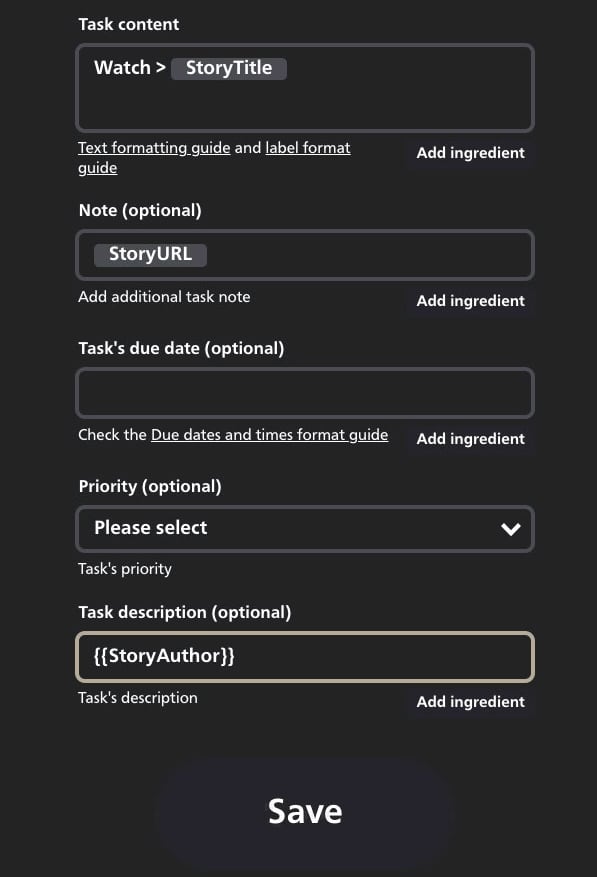
For me, I prefer to alter the variables to make it more suitable for myself by changing the Task content. Here, I typed Watch >. Then, I click on the Add ingredient button and choose StoryTitle. This is the title of the YouTube video.
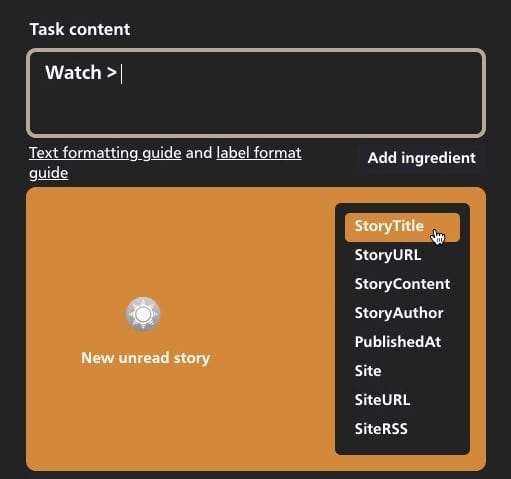
Scrolling further down, I click on the Add ingredient button to add StoryURL. This is the link to the YT creator’s video.
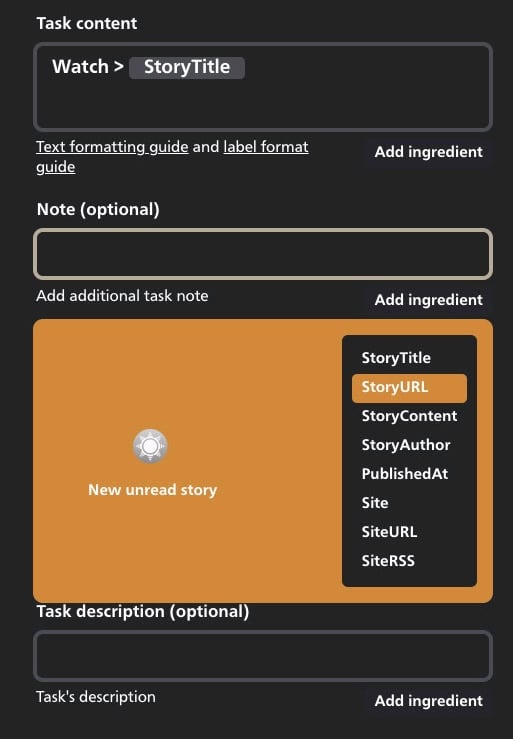
Then, I change the Priority (optional) to Please select, since this task is not that important to me.
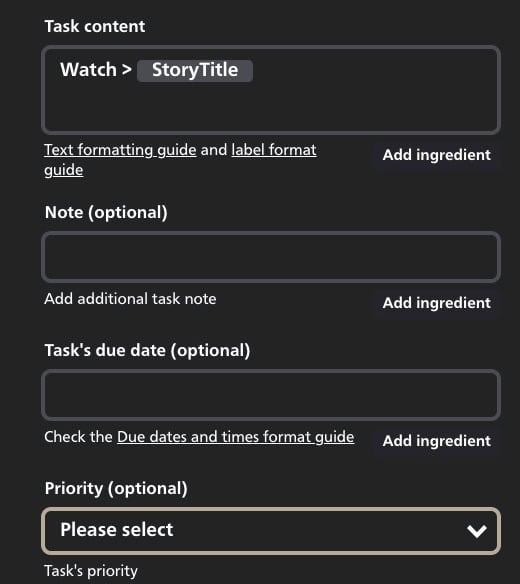
Next, I click on Add ingredient button for Task description (optional) to add StoryAuthor. This will tell me who is the YT creator of the video.
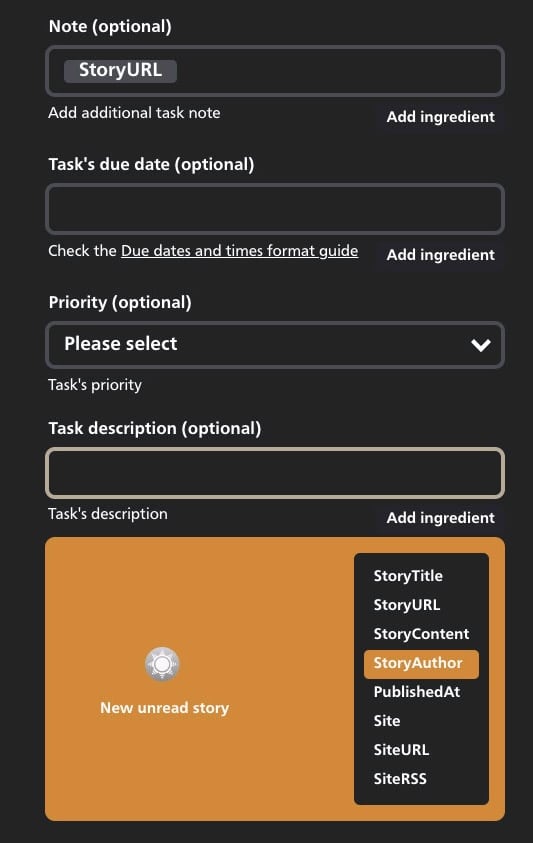
Once everything is set, I then click on the Save button.
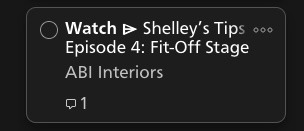
Finally, when the event triggers in IFTTT, your ToDoist task will appear as follows as an example.
YouTube unsubscribing me, so what?!
Yes, I actually add ALL my favorite YT channels onto Newsblur and will hence get a task for all the videos. That way, I don’t have to log into YouTube and can access all the videos I like anywhere and anytime in the world.
If you find the steps above confusing, or you will like me to help you with setting up the automations, so that you just sit back and relax, you can pay for my 1- stop services without needing to subscribe to ToDoist, IFTTT and Newsblur.
Else, take the productivity quiz or